Note: GitHub’s API does not support uploading attachments directly, so the screenshot is not attached to the issue itself. If you also enable an image-sharing endpoint such as Imgur or Discord, the screenshot is uploaded there and a link to it is added to the GitHub issue automatically. Try to use fine grained access tokens. If you use a personal access token, make sure it has the repo scope. Note that these credentials will be included in builds, maybe remove them for release builds.
Repo Owner: Please insert the name of the owner of the repository here.
Repo Name: Please insert the name of the repository itself here.
🔒 API-Token
To get an API token:
- Log in to GitHub and go to Tokens (classic).
- Generate a new token with appropriate permissions and copy it securely.
For a fine-grained token (recommended):
- Register your application in your Settings at Fine-grained tokens
- Generate a new token with with appropriate permissions and copy it securely.
Attention: It is recommended to create a token here that has access only to the specific repository. Additionally, under Permissions, only read and write access to issues should be allowed.
✍️ Input in Unity
After obtaining your API-Token, you need to input these details into Unity.
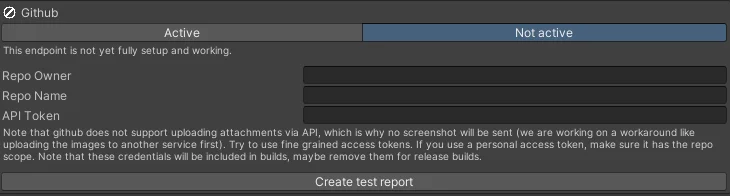
- In Unity, open your Debug System settings (Window > Sparrow > Debug System).
- Go to the “Where to send reports?” section
- Select “GitHub”
- In the Inspector window, you will see fields for “Repo Owner”, “Repo Name” and “API-Token”.
- Enter your details into the respective fields.
- Create a Test Report